Integrating your Shopify store with LettrLabs only takes a minute — and unlocks powerful automations that send handwritten or printed direct mail to your customers based on real-time Shopify events.
Whether you want to win back lapsed buyers, drive repeat orders, or improve retention, this is the first step.
Before You Start
To make the process as smooth as possible, double-check the following:
- ✅ You’re logged into the correct Shopify store
- ✅ You’re logged into your LettrLabs account
Step-by-Step: Set Up the Shopify Integration
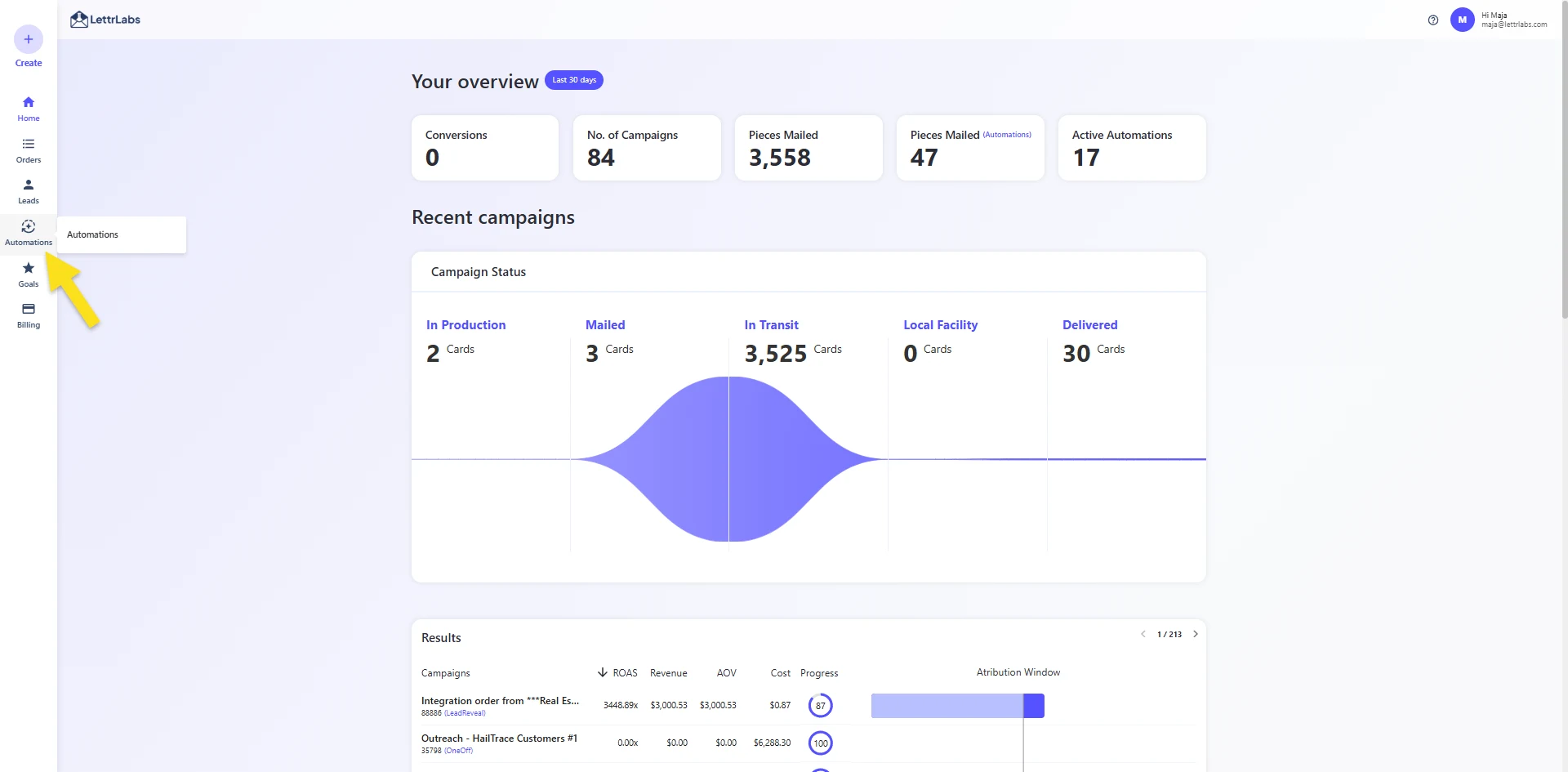
Step 1: Go to the Automations Section
From your LettrLabs dashboard, navigate to Automations in the left-hand menu.
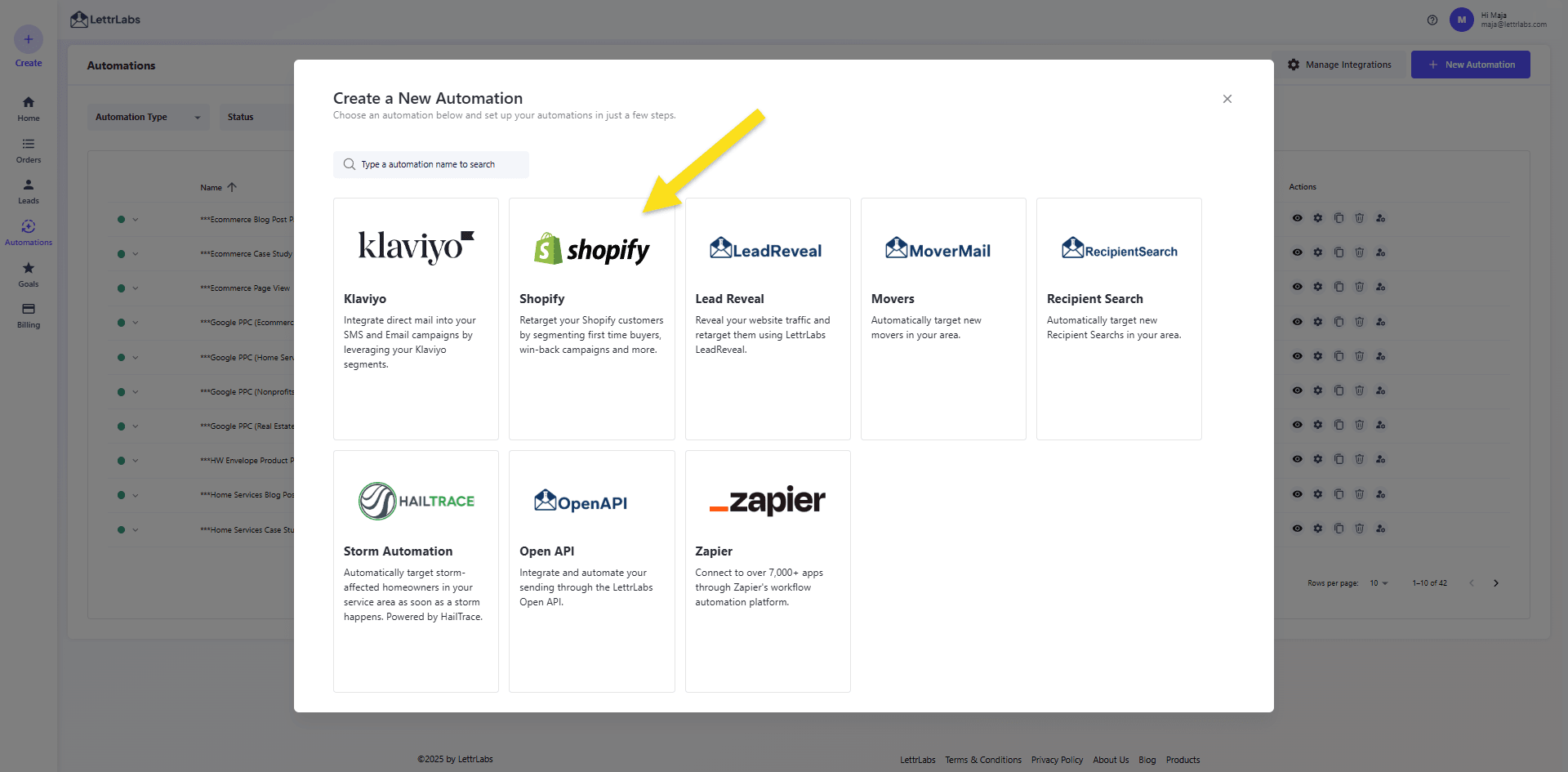
Step 2: Create a New Automation
Click “Create New Automation” and select Shopify as the source platform.
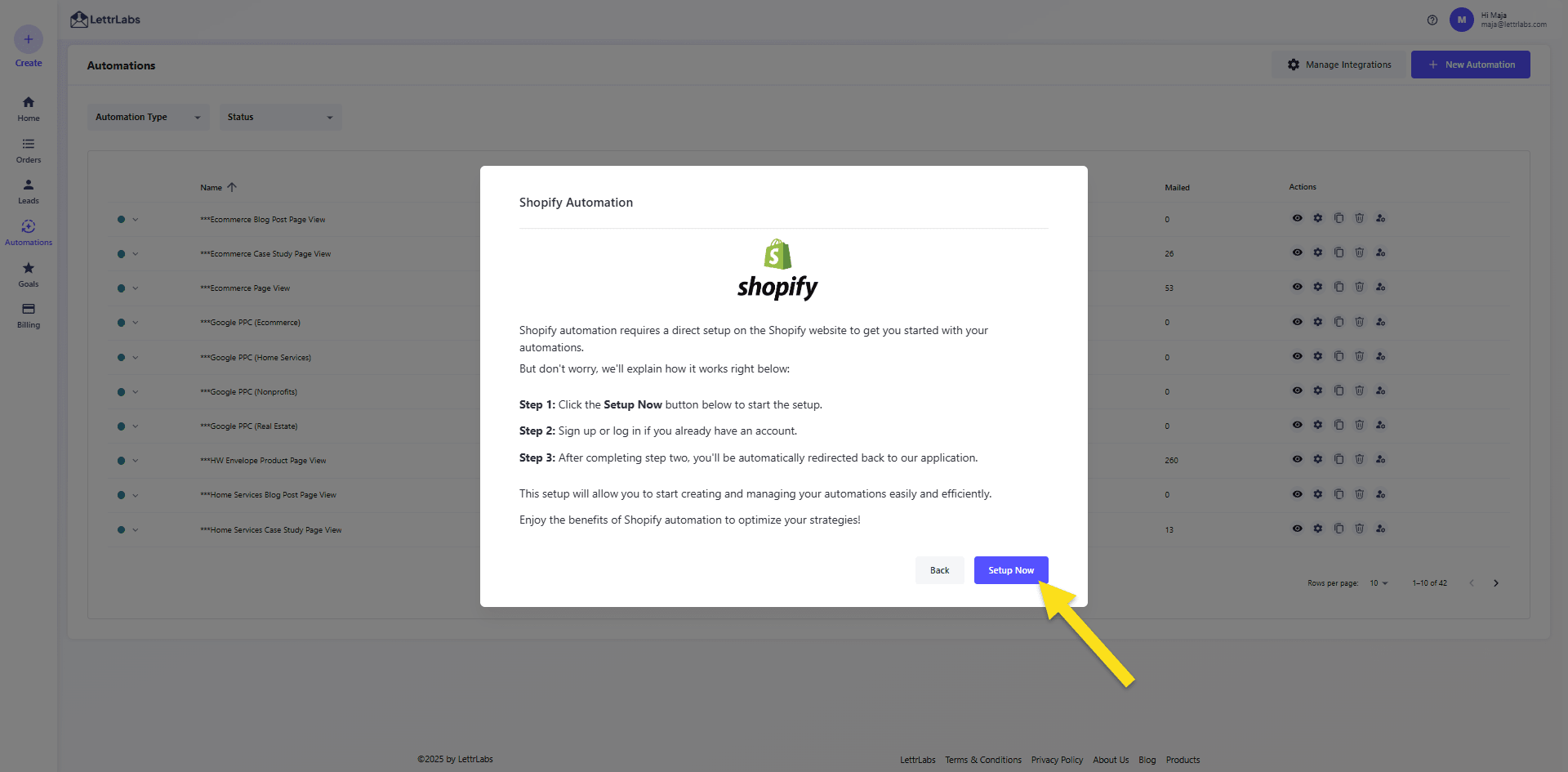
Step 3: Click “Setup Now”
You’ll see a quick overview of what the Shopify integration does. Click “Setup Now.”
LettrLabs will begin the connection process and redirect you to Shopify.
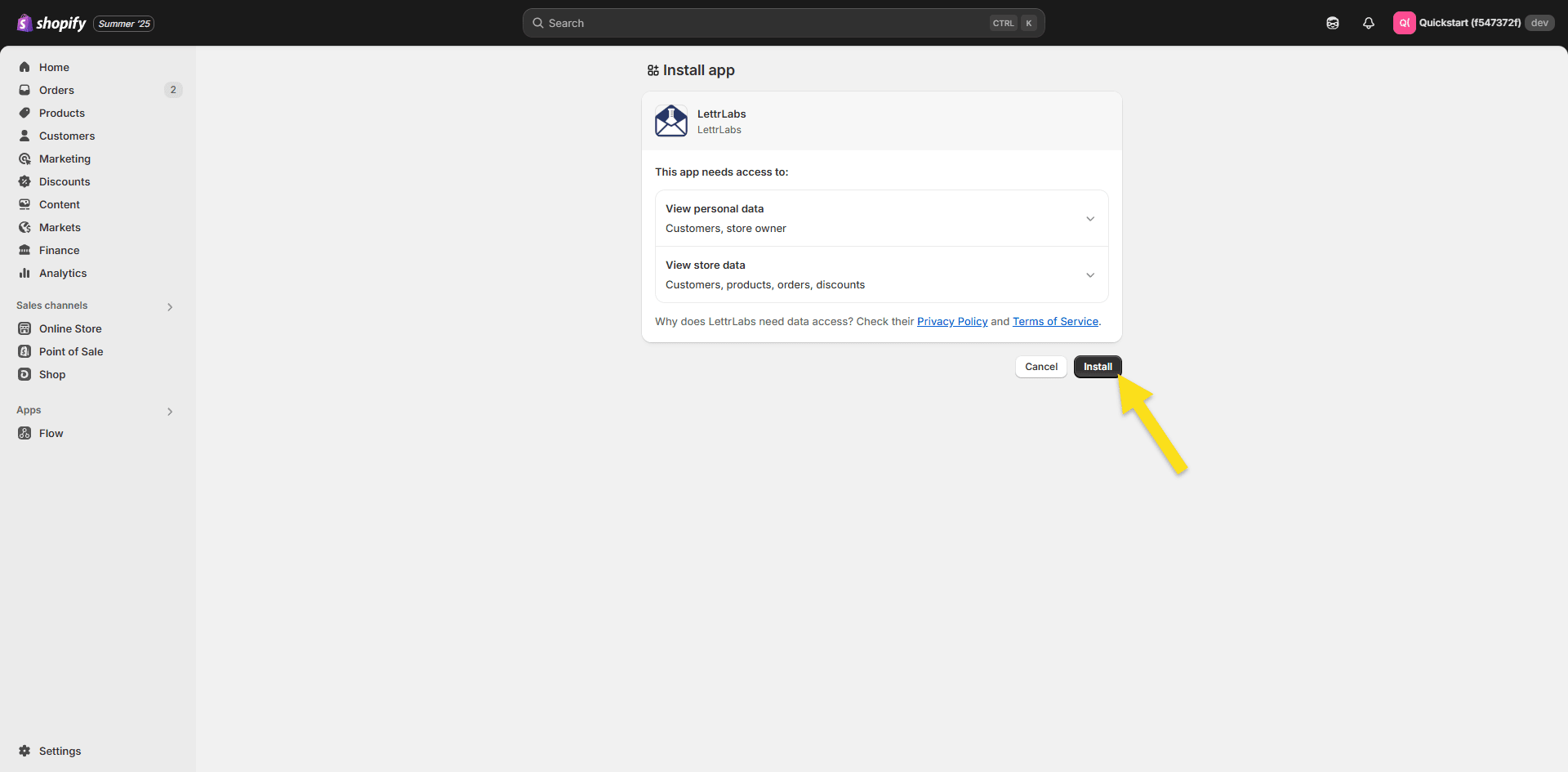
Step 4: Approve the Shopify App Install
Click “Install” to authorize the LettrLabs Shopify App.
If you're already logged into Shopify, this will happen automatically.
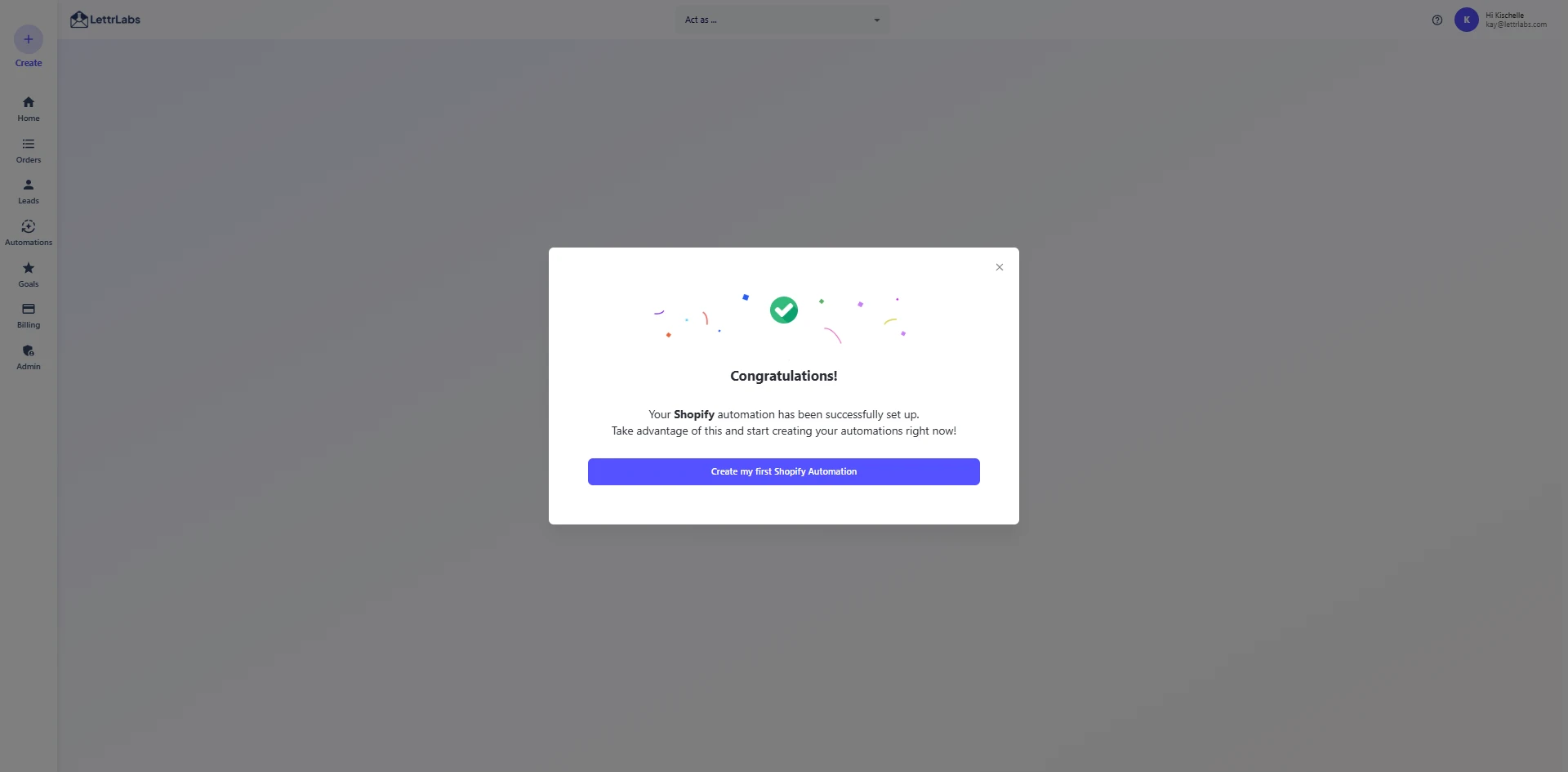
Step 5: You’re Connected!
Once the installation completes, you’ll be redirected back to LettrLabs.
You’ll now see that your store is connected and ready for automation setup.
What’s Next?
Now that your Shopify store is connected, you're ready to:
- Start creating automations
- Set filters based on customer activity (e.g. number of orders, last purchase date)
- Use prebuilt campaigns for Retention, Winback, and Retargeting
👉 We’ll cover those in detail in the next guide:
Shopify Automation Use Cases & Filters →
FAQ
Can I connect more than one Shopify store?
Not at this time — each LettrLabs account can connect to one Shopify store.
Do I need to install any tracking code manually?
Nope. Once installed, the app handles everything for you.
Need Help?
If you get stuck at any point, contact support or message us in-app — we’re here to help.




.png)